Calculated Risk Settings
Calculated Risk is Strise’s automated risk classification. It assigns a Calculated Risk Class to each entity by scoring the entity across your configured risk categories and mapping the total points to your team’s risk class thresholds. These settings encode your internal risk policy into Strise — they are the foundation for consistent, auditable, policy-aligned assessments across your portfolio.
Find them under Settings → Calculated Risk. Everyone on the team can view the page; editing requires manager permissions.
How the Score Is Calculated
- Data collection — Strise evaluates the entity’s current data: screening results (PEP, RCA, sanctions), countries, industry codes, legal form, and any custom risk fields. For companies this includes connected entities — beneficial owners, roles, and owners across the ownership structure — so a PEP two layers up still counts.
- Category scoring — each category contributes points according to your configuration (details per category below).
- Summation — points from the categories are added into a total risk score.
- Class assignment — the total is mapped to a risk class using your thresholds.
The result is shown on the entity page, in Portfolio, and in Reviews. Hover over the risk class on an entity to see the full calculation — every category’s contribution, the matched values, and any missing data:
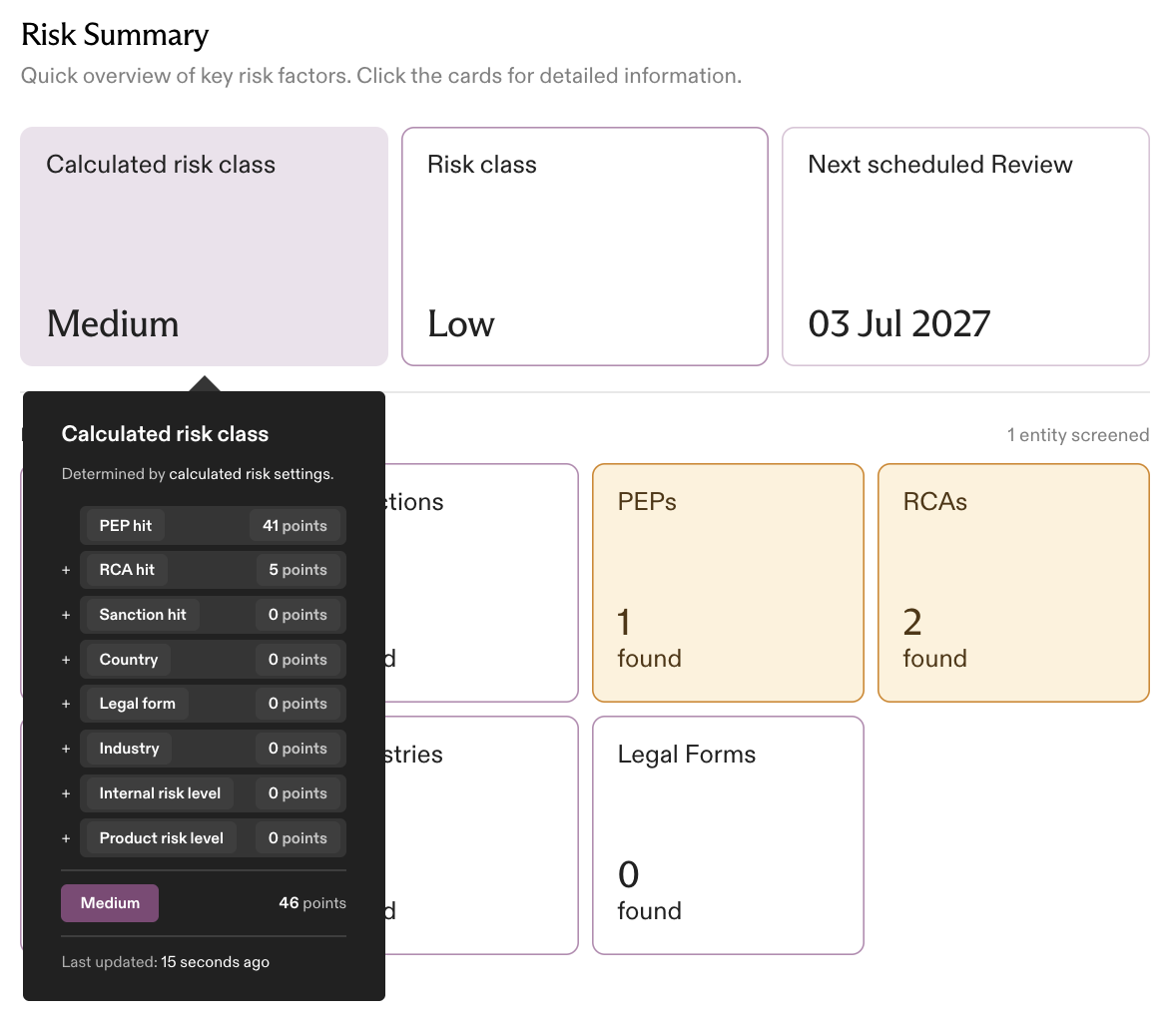
Two scoring rules worth understanding before you configure anything:
- Within a category, the highest-scoring match wins — no summation. A company linked to two high-risk countries gets the points of the highest-scoring country level once, not twice. The same applies to industries and legal forms. This means the risk is never underestimated by averaging, and never inflated by double-counting within a category.
- Custom risk fields are the exception: each configured field scores independently, and the fields sum with each other. Adding many custom fields raises the maximum possible score.
⚠️ Plan your maximum before setting thresholds. Strise does not display a “maximum possible score” — it depends on your configuration. Work out your worst case (one highest level per category + every custom field) before deciding where Low/Medium/High should start. Points per level go up to 100.
Risk Categories
| Category | Applies to | What it evaluates |
|---|---|---|
| PEP | Persons in the entity’s network | Politically exposed persons among roles and owners |
| RCA | Persons in the entity’s network | Relatives and close associates of PEPs |
| Sanctions | Companies and persons | Suggested-true sanctions matches |
| High-risk countries | Companies and persons | Countries linked to the entity and its network |
| High-risk industries | Companies | The company’s registered industry codes |
| High-risk legal forms | Companies | The company’s legal structure |
| Custom risk fields | Your choice | Anything you record yourself — e.g. Source of Wealth, Product Risk, Delivery Channel |
The network scope — which connected entities are screened — is shown on the entity’s risk summary. Teams with the network-risk toggle enabled can switch between screening the entity’s own roles/UBOs (plus majority-owned subsidiaries) and the full ownership-chart network:

Configuring Risk Points
For each category you create score levels: a number of points (0–100) and the values that trigger it. Up to five levels per category. An entity matching a level gets that level’s points; if it matches several levels in the same category, the highest one counts. Each level can also carry a highlight colour (moderate / medium / high) used to flag the factor across the app.
ℹ️ When you click Add risk level, the new level starts at the lowest unused point value — often 1 point. That’s a placeholder, not a recommendation: set the points you actually mean. (Two levels in the same category can’t share the same point value.)
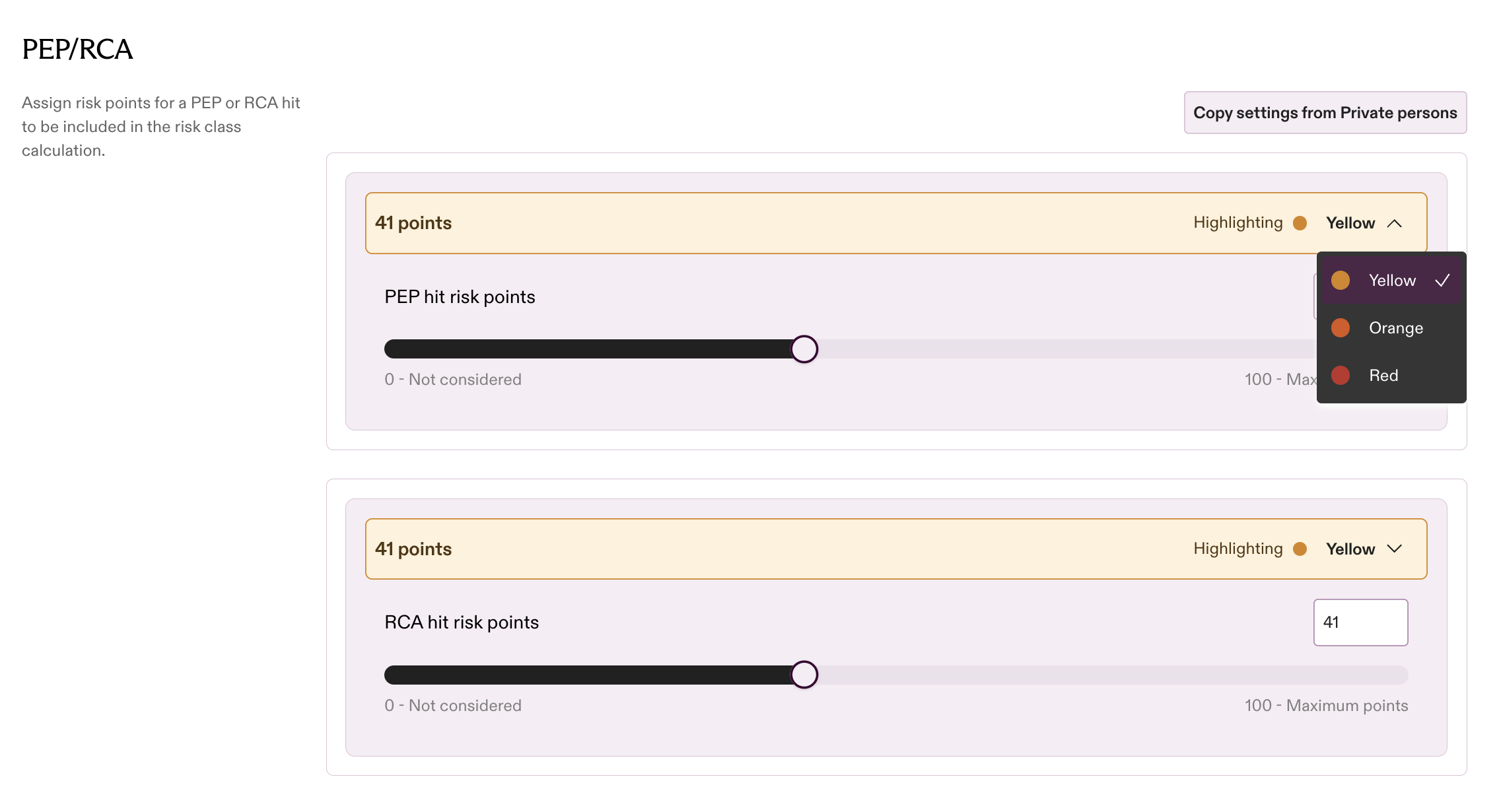
PEP and RCA
A single hit-level score each: if the entity’s network contains at least one PEP (or RCA), the configured points are added. PEP and RCA are scored separately so you can weight direct political exposure differently from associates.
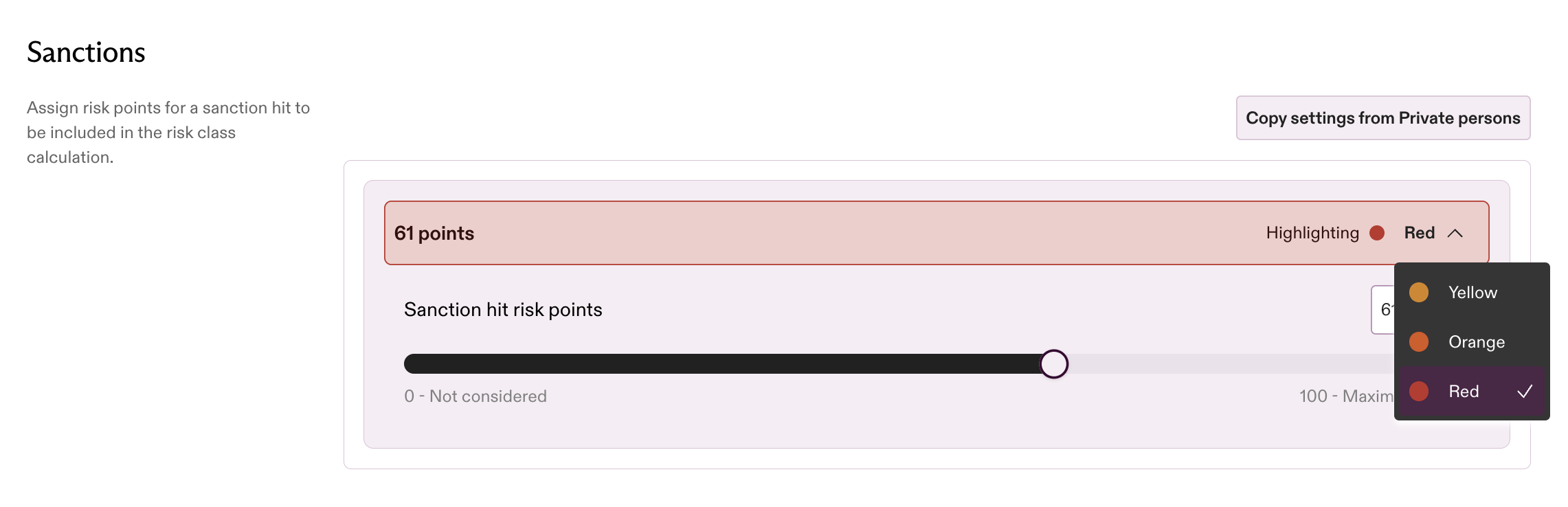
Sanctions
Points added when the entity or its network has at least one suggested-true sanctions match. Because a sanctions match is a critical finding, teams typically set this high enough that it alone puts the entity in your highest class.
High-Risk Countries
Create up to five score levels and fill them with individual countries and/or predefined collections: the FATF blacklist, FATF greylist, EU high-risk third countries, and Tax Justice tax havens.
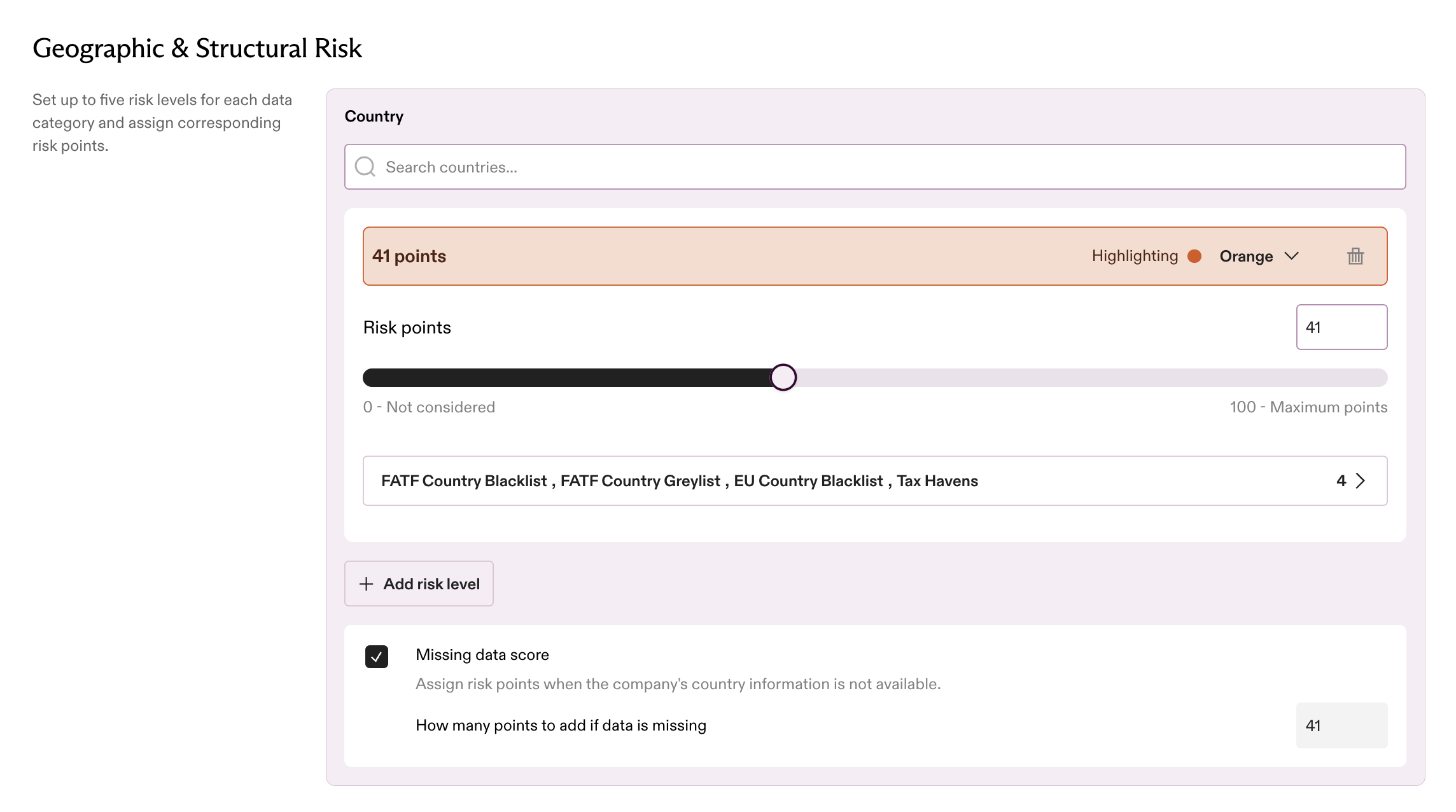
ℹ️ Collections and manual selections don’t double-count. If a country appears both in one of your levels and in a selected collection, the entity simply gets the points of the highest matching level. Collections are curated lists that update with Strise releases — adding the FATF blacklist means future list changes flow into your scoring automatically.
High-Risk Industries
Assign industry codes (NACE-style, per country standard) to score levels. Parent categories cover their sub-codes.
High-Risk Legal Forms
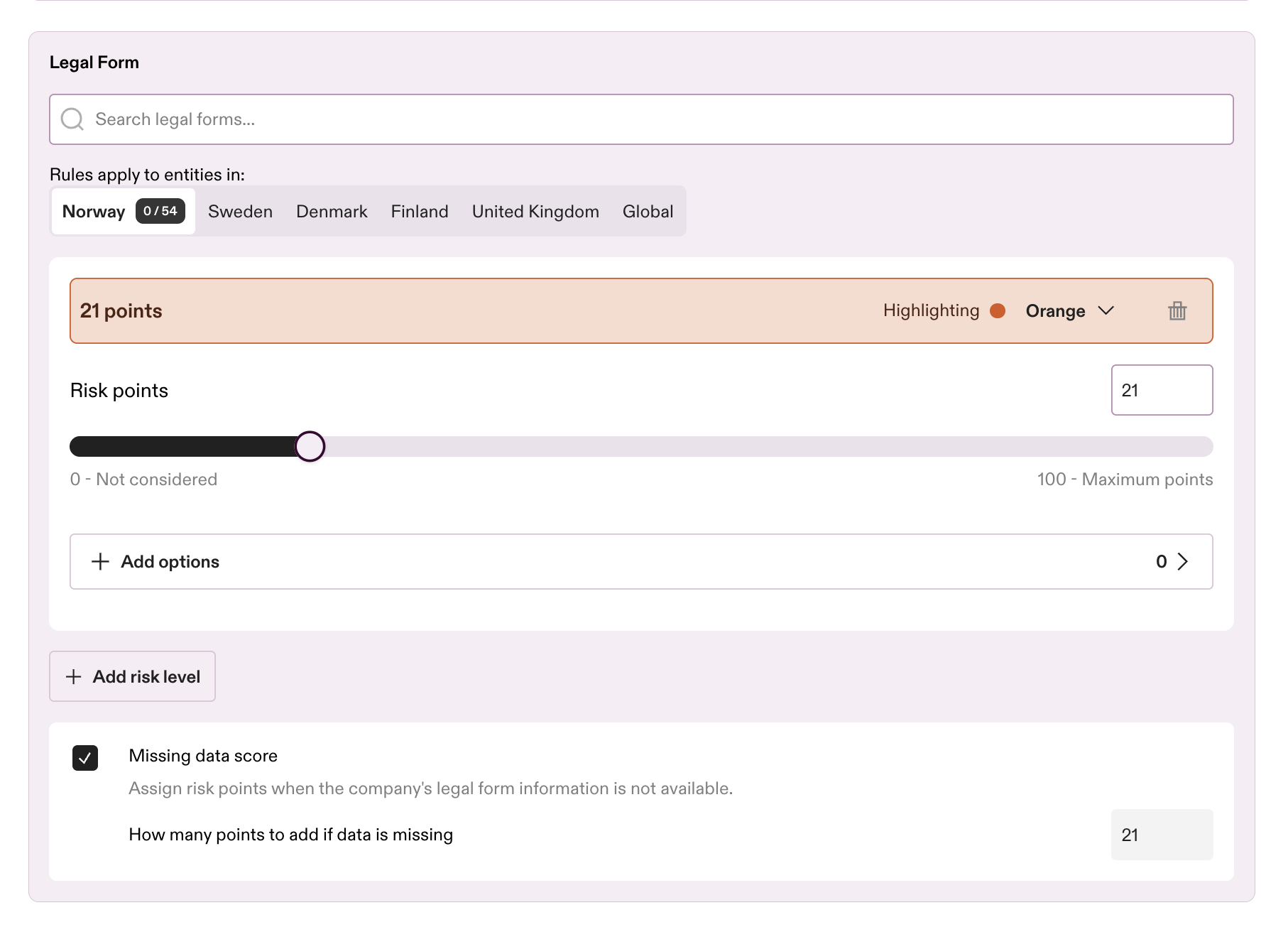
Assign legal forms (per country) to score levels — for example structures with anonymous ownership.
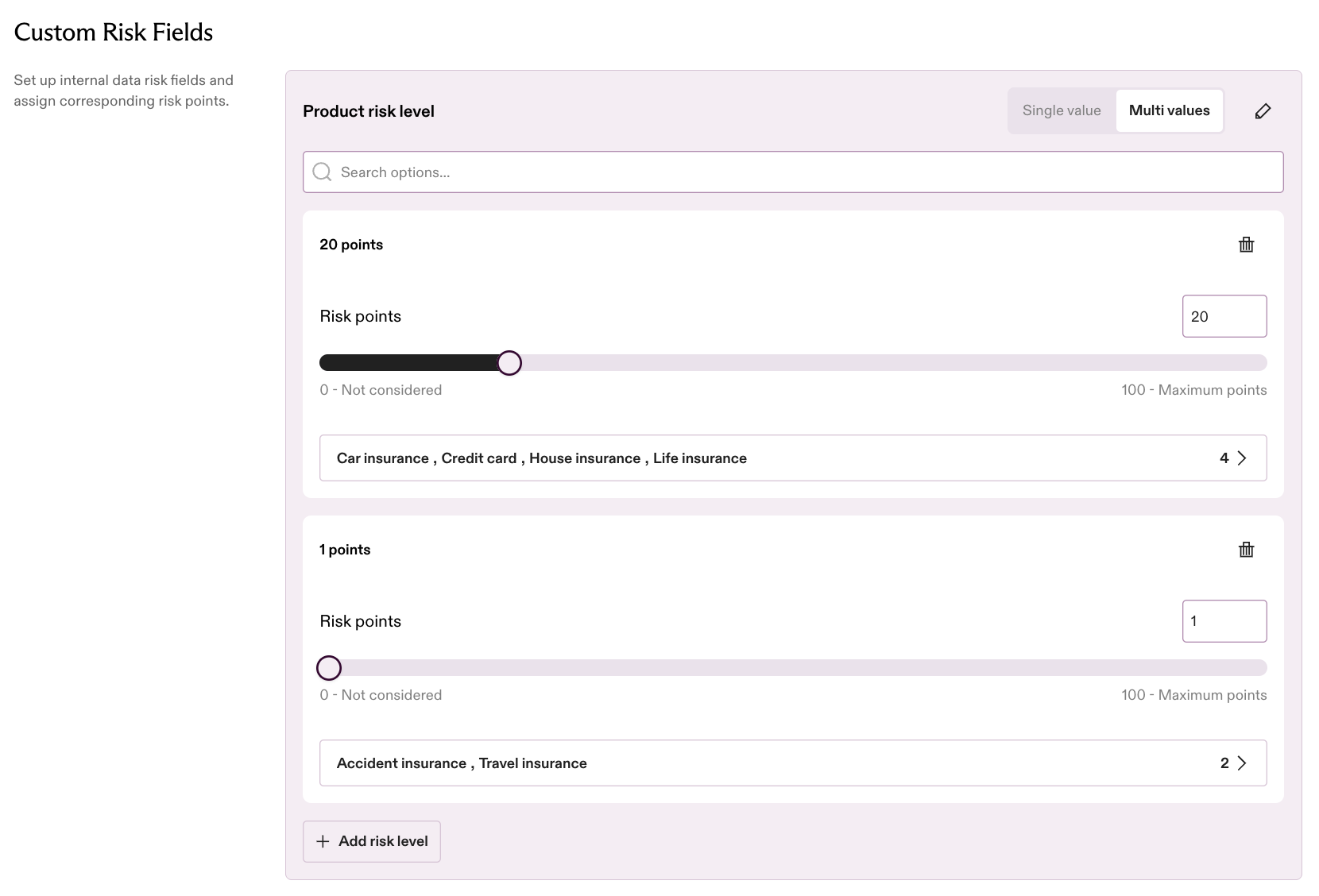
Custom Risk Fields
Define your own fields — single-select or multi-select — and give each option a score level. Field definitions are shared across the team (and across Companies and Private persons); the scoring is configured per entity type. Remember: custom fields sum with each other, unlike the built-in categories.
Missing Data
For countries, industries, and legal forms you can set a missing data score — points to add when Strise has no data for that category. If data is missing and no missing-data score is configured, the entity’s result becomes Inconclusive instead of a risk class, so absent data is never silently treated as low risk.
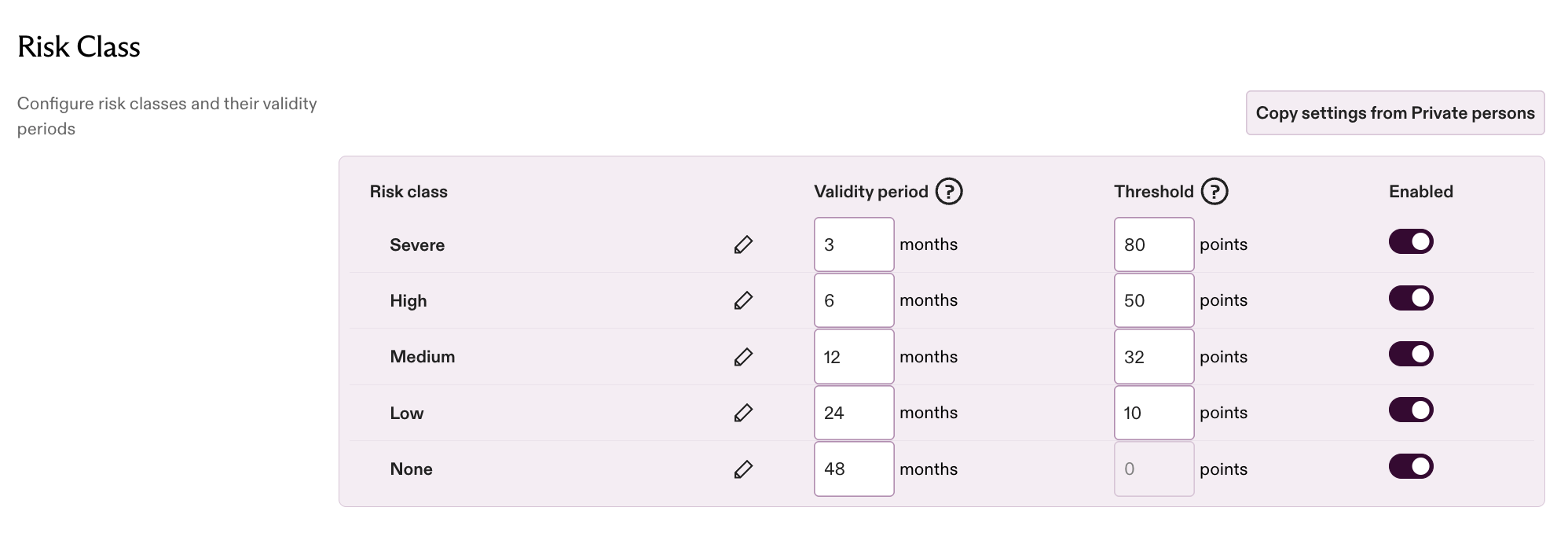
Risk Classes and Thresholds
The total score maps to a risk class through thresholds you define:
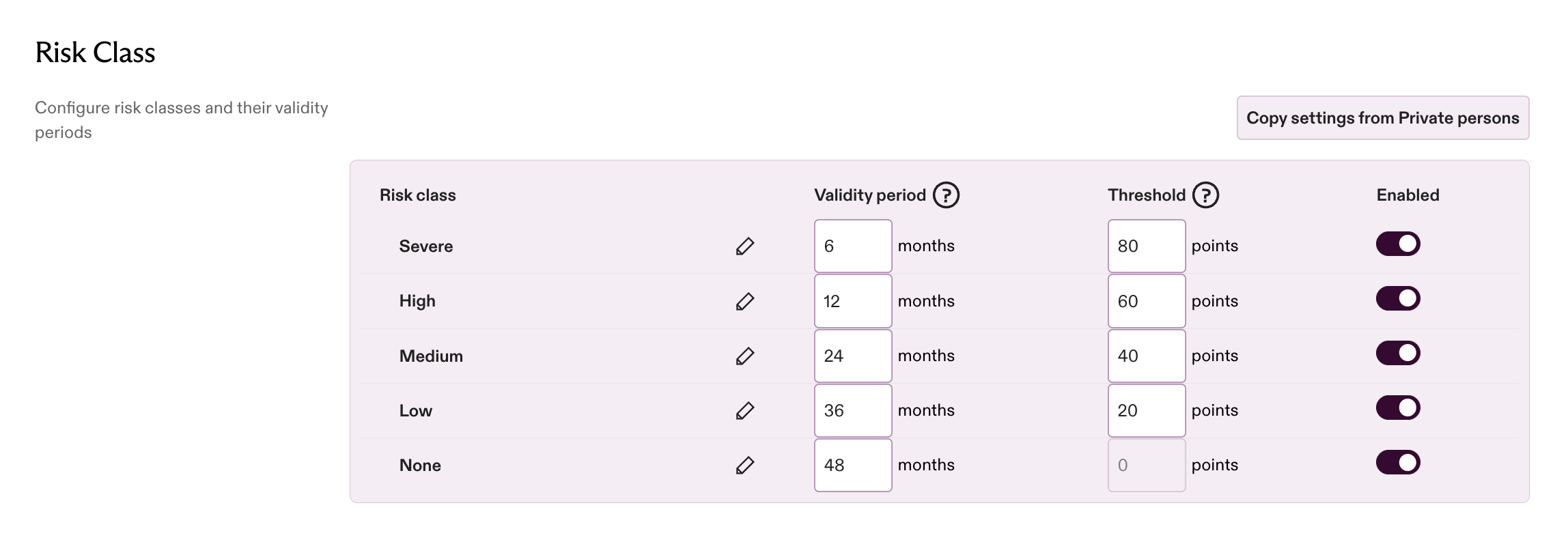
- Up to five classes, each with an editable name. The default set is None (0), Low (20), Medium (40), High (60) enabled, plus Severe (80) available to enable — thresholds fully editable.
- A threshold is the class’s starting point (inclusive). Each class covers from its threshold up to the next enabled class’s threshold; the top class is open-ended. Ranges are contiguous by construction — every score lands in exactly one class.
- At least two classes must be enabled, the lowest enabled class must start at 0, and thresholds must be strictly ascending.
- Validity period (months) is set per class in the same table — how long a completed review stays valid before the entity is due for re-review. Validity is unset until you configure it; a common risk-based pattern is 24 / 12 / 6 months for Low / Medium / High.
Manual Risk Level
The calculated class can be supplemented or overridden with a Manual Risk Level, set when performing a Review. Both values stay visible — it’s always transparent that an override exists and what the system calculated:
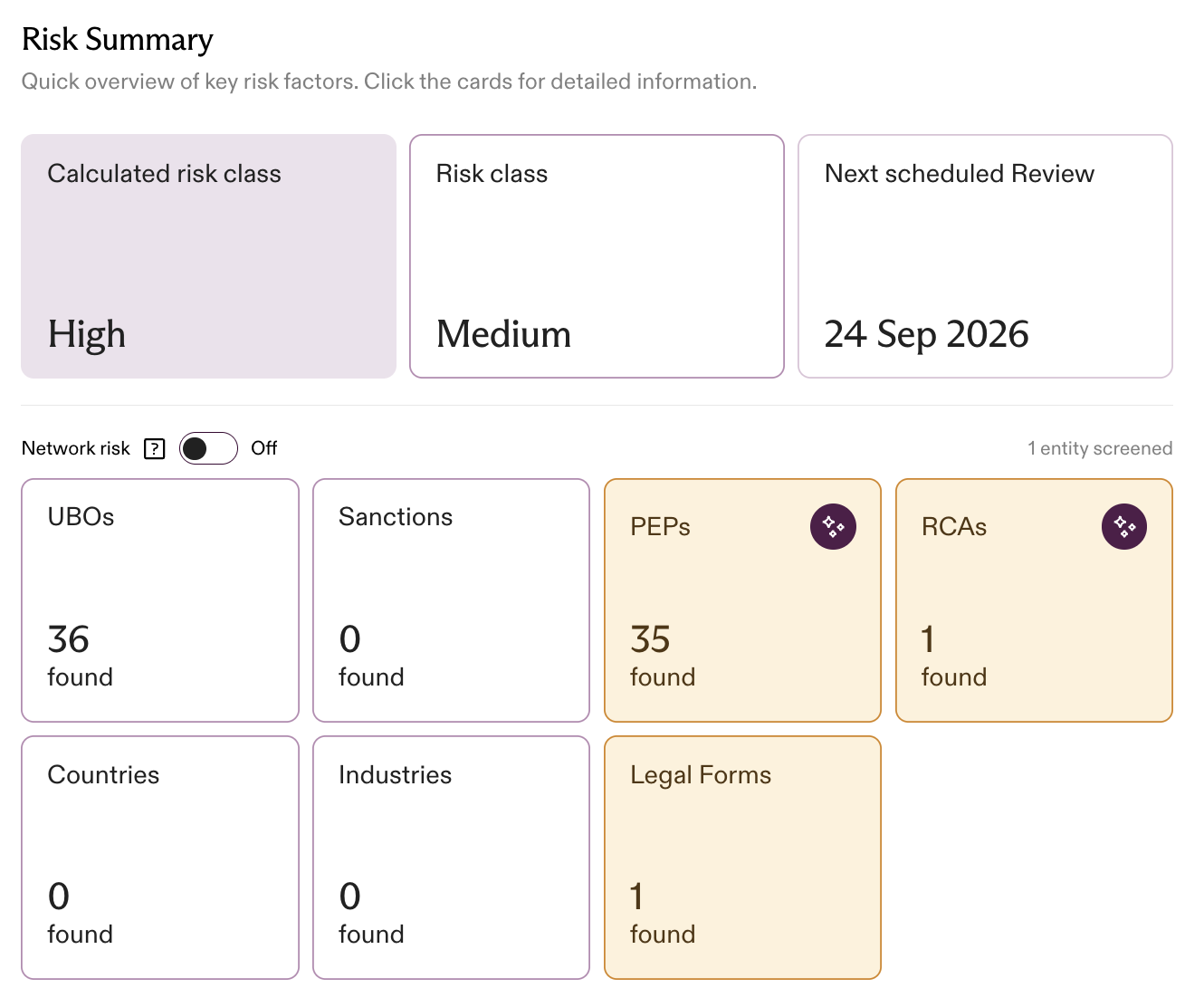
- The calculated class keeps recalculating as data changes; the manual level persists until a reviewer changes it.
- The manual level (when set) is what drives the next-review date via the class validity periods.
- Typical uses: documentation justifies a lower class despite a high-risk industry; a company naturally has many PEPs (say, a political party) without warranting your top class; or a self-declaration adds context the automated score can’t see.
Private Persons
Teams with private persons enabled get a separate tab with its own risk classes, thresholds, and scoring — limited to PEP, RCA, sanctions, and custom risk fields (no geographic or structural categories).
Copy buttons let you copy a section’s configuration between the Companies and Private persons tabs.
⚠️ Copying replaces the target tab’s current configuration immediately and without a confirmation step — and copying Risk Classes also carries over the validity periods. Nothing is saved until you press Save, so if you copy by mistake, leave the page without saving.
Where Calculated Risk Shows Up
- Entity pages — the class with its hover breakdown.
- Portfolio — class per entity for at-a-glance risk distribution; also the basis of Portfolio Health.
- Reviews — the class and its breakdown at review time are part of the documented assessment. Settings changes are not retroactive: a completed review keeps the class it documented; the updated settings apply from the next review.
- Monitoring — monitored data changes (new PEP hit, ownership change, sanctions match) change the inputs to the calculation; see The Monitoring System.
Permissions
| Action | Who |
|---|---|
| View Calculated Risk settings | All users (read-only notice shown to non-managers) |
| Edit risk points, classes, thresholds, validity | Managers (settings-write permission) |
| Set or change Manual Risk Level on an entity | Users with Review access |
Related Pages
- Calculated Risk — the feature overview
- PEP Settings and Sanctions Settings — screening configuration that produces the hits this page scores
- Risk Flag Settings
- Monitoring Alerts Settings