Uploading Your Portfolio to Strise
You can upload your existing portfolio to Strise using a CSV file. This is the fastest way to get started if you already have a list of companies to monitor. If you integrate with the Connect API, you can also sync your customer list programmatically.
How to Upload
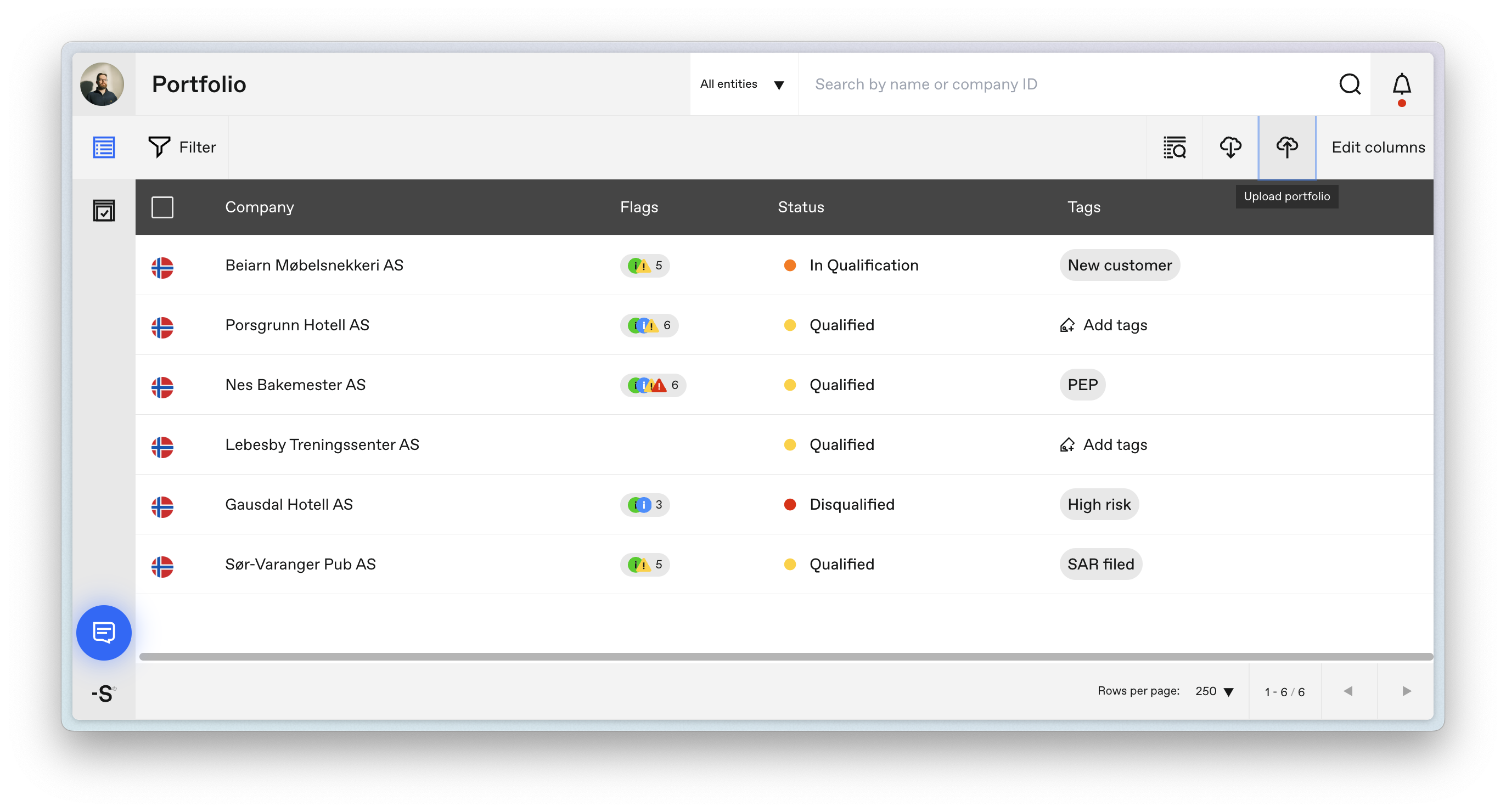
- Click the Upload portfolio button in the portfolio view.
- Browse for your CSV file or drag and drop it into the upload area. The dialog also shows the expected file format and a Download template button that gives you a correctly formatted starting point.
File Format
The upload accepts CSV files only. If your data is in Excel format, convert it to CSV first:
- Open the file in Excel.
- Go to File > Save As.
- Select CSV (Comma delimited) as the file type.
- Save and upload the resulting
.csvfile.
Every row must have exactly five columns, in this order:
| # | Column | Required | Description |
|---|---|---|---|
| 1 | Organization number | Yes | The company’s registration number in its national business registry. Spaces and dashes are ignored. |
| 2 | Country | Yes | Two-letter ISO 3166-1 alpha-2 code for the country where the company is registered, e.g. NO, SE, DK, GB. Rows in the same file can use different countries. |
| 3 | Assignee emails | No | Comma-separated list of email addresses. Each address must belong to a user on your Strise team. |
| 4 | Tags | No | Comma-separated list of tags. Existing tags are matched by name; tags that don’t exist yet are created automatically. |
| 5 | Status | Yes | The portfolio status to give the company. One of In Review, Prospect, Ignored, Following, Qualified, Disqualified, or Account (case-insensitive). See Changing the Status of a Company. |
Formatting notes:
- Header row — optional. Strise detects and skips it automatically.
- Delimiter — detected automatically. Semicolon, comma, tab, and pipe all work.
- Optional cells — leave them empty, but keep the delimiters so the row still has five columns.
- Quoting — in a comma-delimited file, wrap cells that contain commas (multiple assignee emails or tags) in double quotes. Excel and the downloadable template do this automatically.
Example (comma-delimited, with a header row):
Organization number,Country,Assignee emails,Tags,Status
123456789,NO,anna@yourcompany.com,New customer,In Review
5566778899,SE,"anna@yourcompany.com, jon@yourcompany.com","High risk, Retail",Account
12345678,DK,,,Following
Handling Duplicates and Errors
Strise validates the file before anything is imported:
- Duplicates — if some companies are already in your portfolio, choose how to handle them: Merge (the default — data from the file and data in the portfolio are merged), Overwrite (data from the file overwrites the existing portfolio data), or Ignore (duplicate rows in the file are skipped and the portfolio data is retained).
- Errors — rows that fail validation are listed with their line number and the reason, for example a company that couldn’t be found, an assignee email that doesn’t match a team user, or an invalid status value. You can download the failing rows as a CSV, fix them, and replace the file — or click Ignore errors to import only the valid rows.
After you confirm the upload, companies are imported in the background, so it can take some time before they all appear in your portfolio. If your team uses monitoring, uploaded companies are added to monitoring automatically — except companies uploaded with the Ignored status.