Monitoring Alerts Settings
Monitoring Alerts settings control which changes generate alerts for your team and how those alerts are delivered. You find them under Settings → Monitoring alerts in the app; they can be adjusted by team managers.
The page is organised into five sections:
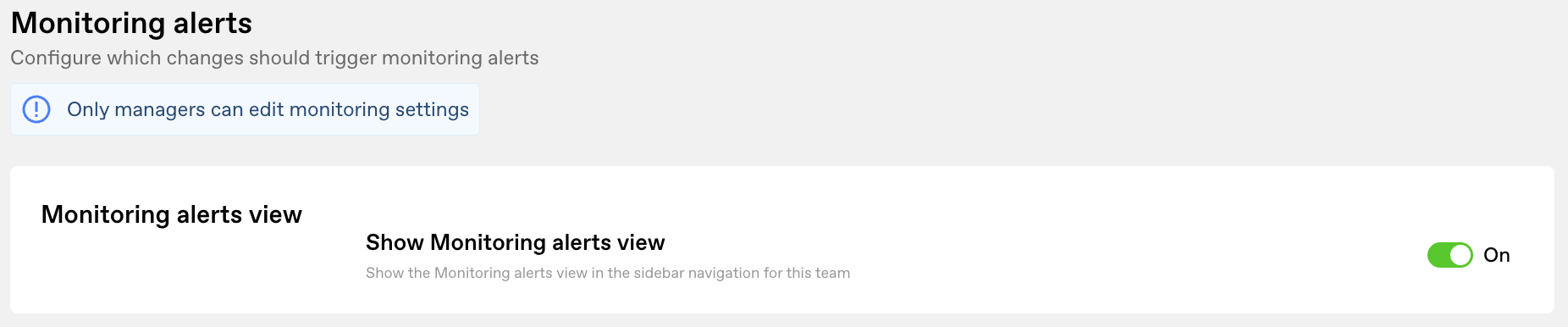
- Show Monitoring Alerts view — controls whether the Monitoring page is visible in the app
- PEP alerts
- Sanctions alerts
- Relation alerts — roles, owners, ownership, and beneficial owners
- Company Information alerts — registry data, financials, lifecycle status, and court cases
Each category has its own master toggle, granularity options, and email-notification settings. Changes apply to your whole team.
Show Monitoring Alerts View
Controls whether the Monitoring page is visible in the app for your team.
When disabled, the page is hidden from the sidebar for everyone on the team. Some API-first teams choose this so that alerts don’t sit unresolved in an interface they rarely open — alerts remain available over the Connect API and email notifications still go out if enabled. Use it with care: it removes the Monitoring view for your entire team.
PEP Alert Settings
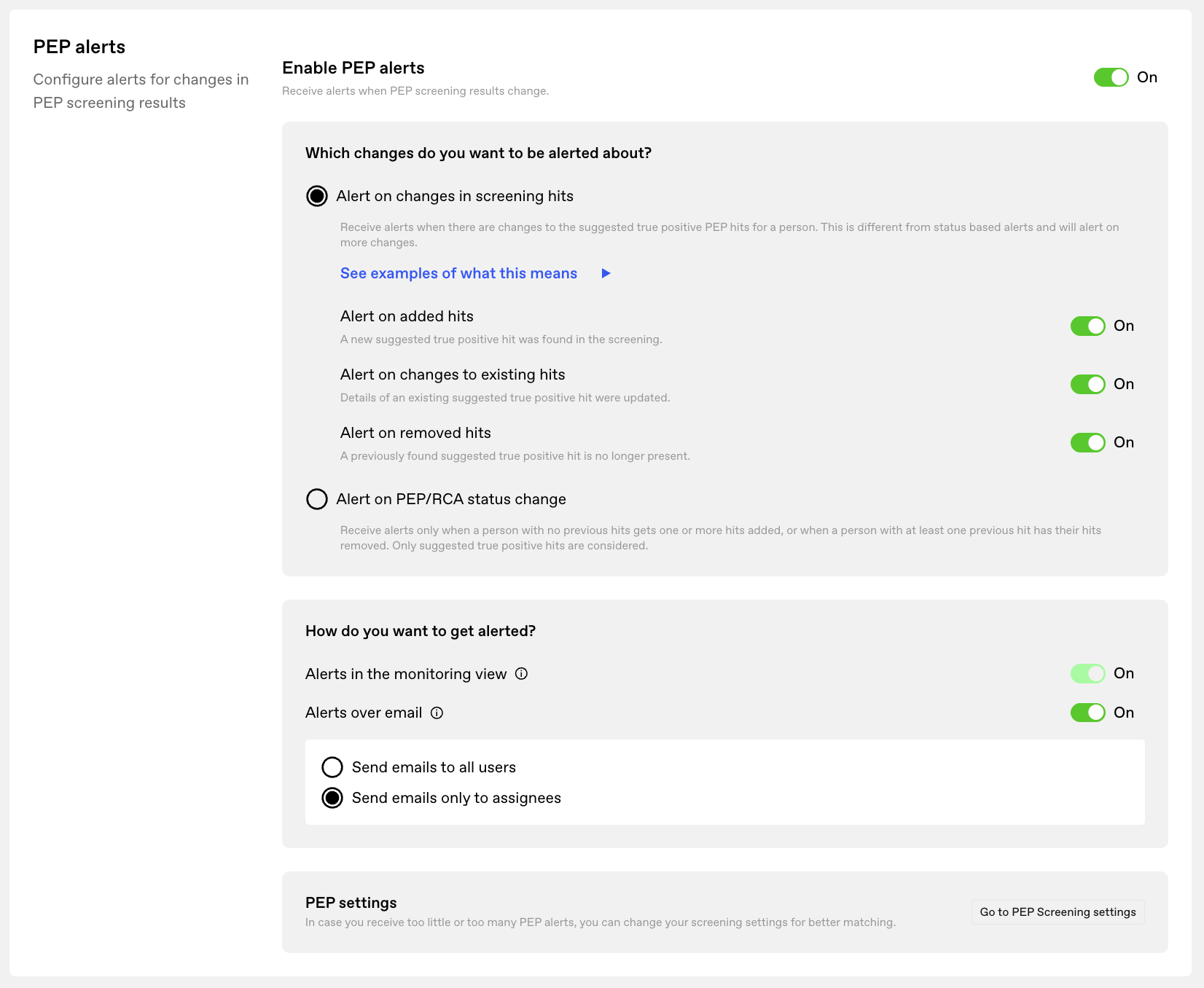
Master Toggle
Enable or disable PEP monitoring alerts entirely.
Alert Granularity
Choose one of two modes:
| Mode | Behavior |
|---|---|
| Changes in screening hits (default) | Alerts on individual hit-level changes: added hits, changed hits, and removed hits — each independently toggleable. All three are enabled by default. |
| PEP/RCA status changes | Alerts only when the overall status flips — a person becomes or stops being a PEP, or becomes or stops being an RCA (each independently toggleable). Fewer, higher-level alerts. |
Email Notifications
Optionally deliver PEP alerts by email — see Email delivery below for how and when emails are sent.
Sanctions Alert Settings
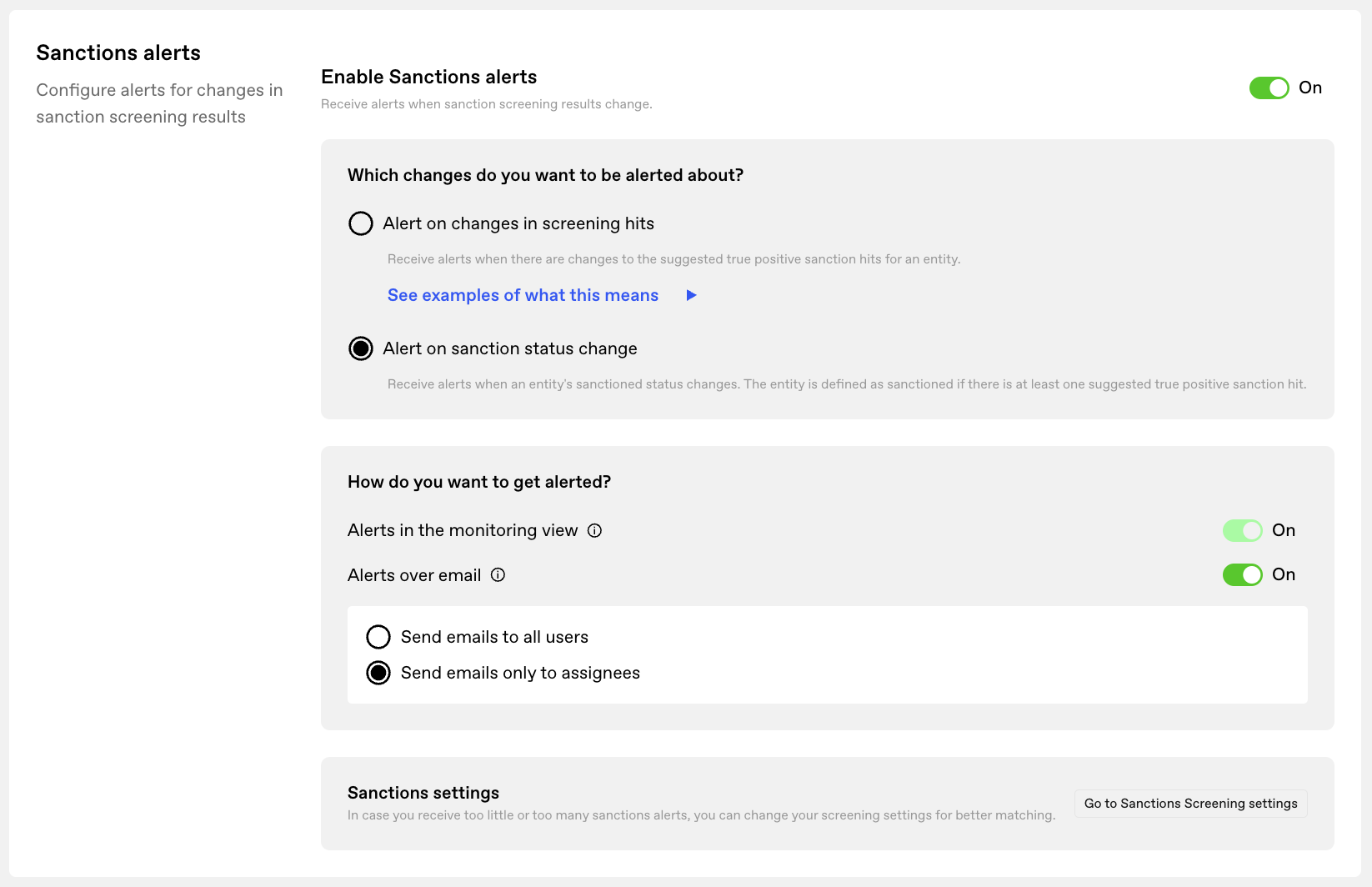
Sanctions alerts follow the same pattern as PEP alerts:
- Master toggle — enable or disable all sanctions alerts.
- Granularity — either changes in screening hits (added / changed / removed, all enabled by default) or sanctioned status change (a single toggle that alerts when an entity gains or loses its sanctioned status).
- Email notifications — per-category email delivery.
Relation Alert Settings
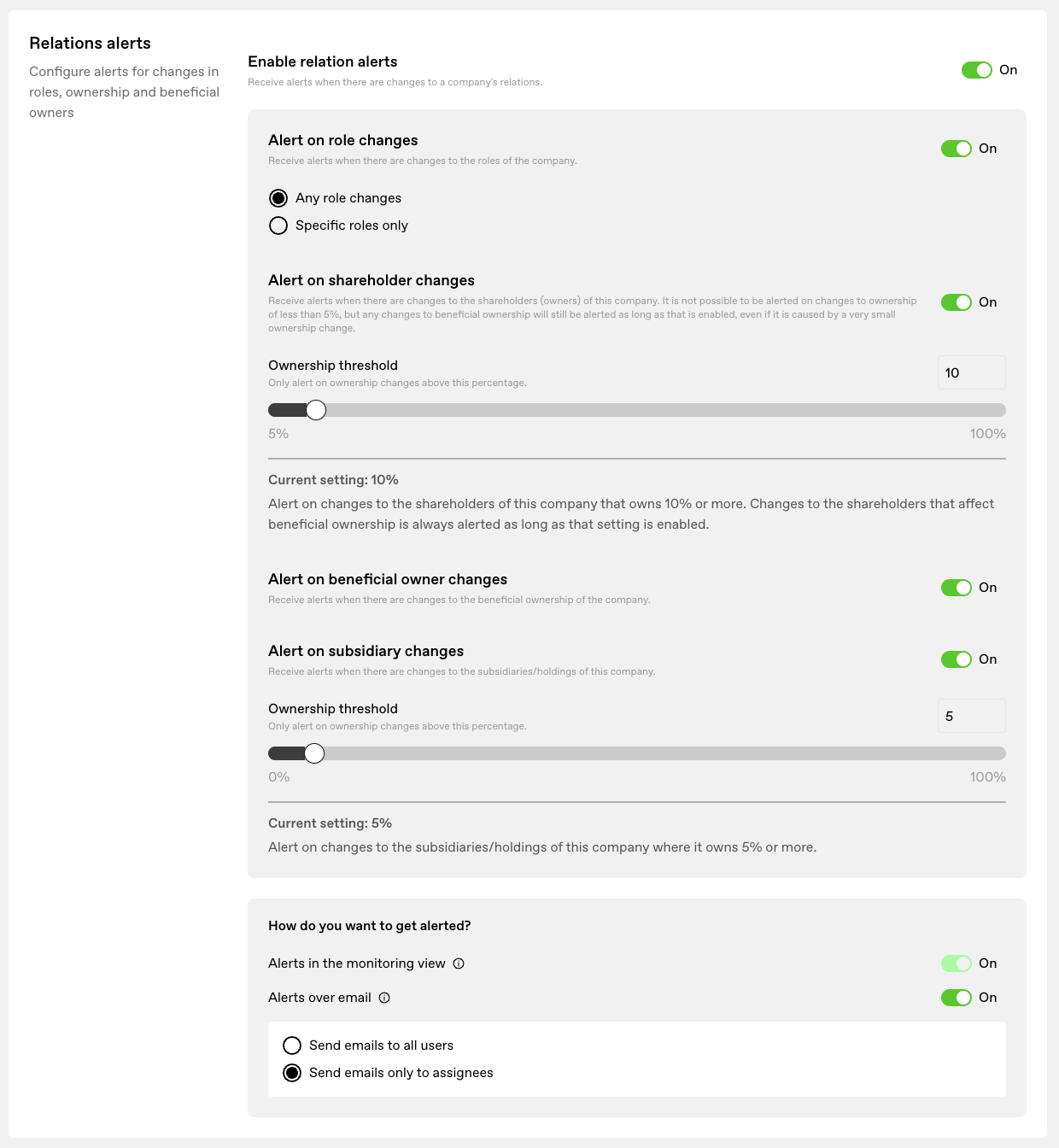
Relation alerts cover changes in the ownership and role structure of monitored companies. One master toggle, four independent sub-categories:
| Sub-category | What it covers | Default |
|---|---|---|
| Change in roles | Board members, executives, signatories, auditors, etc. | Enabled, no exclusions |
| Change in owners | Who owns this company | Enabled, 5% threshold |
| Change in ownership | What this company owns (subsidiaries, holdings) | Enabled, 5% threshold |
| Change in beneficial owners | The company’s ultimate beneficial owners | Enabled, 5% threshold |
- Role exclusion list — exclude specific role titles from triggering alerts (for example Auditors and Accountants, if those changes aren’t relevant to your team). With no exclusions, all role changes alert.
- Ownership thresholds — only alert when the stake involved is at least the threshold percentage. For owners the minimum is 5% (owners below 5% are not part of the ownership data). For ownership and beneficial owners the range is 0–100%.
- Beneficial owners identified without an ownership percentage (for example through family relations or roles) are not affected by the threshold — they always alert while beneficial-owner alerts are enabled.
Company Information Alert Settings
Company Information alerts cover changes to a monitored company’s registry data, financial figures, lifecycle status, and court cases.
The master toggle is disabled by default. When you first enable it, the next monitoring run establishes a baseline for your portfolio — enabling it on a large portfolio may produce an initial wave of alerts.
With the master toggle on, these fields alert by default:
| Field | Notes |
|---|---|
| Company name | |
| Legal form | |
| Identifiers | Registration number, LEI, VAT, charity number, and others. Individual identifier types can be muted. |
| Registered address | |
| Industry | |
| Employee count | Optionally set a minimum change percentage so small fluctuations don’t alert. |
| Business purpose | |
| Company status |
These fields are opt-in (disabled until you enable them):
| Field | Notes |
|---|---|
| Share capital | |
| Revenue | From filed financial statements. |
| Net income | From filed financial statements. |
| Auditor notes | Qualified remarks from the auditor. |
| Lifecycle status | Cross-registry lifecycle events: bankruptcy proceedings, compulsory liquidation, mergers, debt restructuring, dissolution, and similar. |
| Court cases | Norwegian court cases where the company appears as a party. Only cases active within the last 12 months alert by default (configurable). |
There is also a separate toggle for alerting on company-information changes in related companies (disabled by default).
Email Delivery
Each alert category has its own email setting, disabled by default. When enabled, choose one recipient mode per category:
| Recipient mode | Who gets the email |
|---|---|
| All users (default) | Every member of the team |
| Assigned user | Only the user assigned to the entity the alert concerns |
| Team email address | A shared mailbox instead of individual users — useful for compliance team inboxes |
Emails are sent as a daily digest: one consolidated email per user per team, covering unresolved alerts from the last seven days that haven’t already been emailed. Email delivery requires the Monitoring view to be enabled for the team.
Default Settings
All teams start with the following defaults:
| Setting | Default |
|---|---|
| Show Monitoring Alerts view | Enabled |
| PEP alerts | Enabled — hit-level (added, changed, removed) |
| Sanctions alerts | Enabled — hit-level (added, changed, removed) |
| Relation alerts — roles | Enabled, all roles (no exclusions) |
| Relation alerts — owners / ownership / beneficial owners | Enabled, 5% threshold |
| Company Information alerts | Disabled (sub-fields pre-configured as listed above) |
| Email notifications (all categories) | Disabled; recipient mode “All users” |
If your team was migrated to the new monitoring system on default settings in 2026, this table is what you received — every value can be changed on this page.
Related Pages
- The Monitoring System — how monitoring and screening actually run
- Working with Monitoring Alerts — the day-to-day alert workflow
- Monitoring Alerts over the API — consuming alerts programmatically
- PEP Settings and Sanctions Settings — screening configuration that determines what counts as a hit (changing these can generate new alerts)